

Sprite animation player
Contains ads

5K+
Downloads

PEGI 3
info


About this app
The Sprite animation player: a tool for testing sprite animations
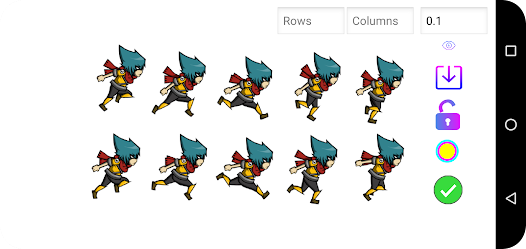
In order to facilitate the creation and testing of sprite animations, the Sprite animation player allows you to easily preview the appearance of a sprite animation, whether it's a sprite sheet or a package of separate sprites.
How to test a sprite sheet:
1. Open the sprite sheet you want to play.
2. Specify the rows and columns that the sprite sheet contains.
3. Press the "Ready ✔" button.
How to exclude sprites from the animation:
If you want certain rows or columns of sprites to not be displayed in the animation, you can exclude them by following these steps:
1. Divide the sprite sheet by pressing the button with blue squares.
2. Press the row or column you want to exclude and mark it with an ❌.
To exclude individual sprites, follow these steps:
1. Divide the sprite sheet by pressing the button with blue squares.
2. Press the sprite you want to exclude and mark it with an ❌.
When you divide the sprite sheet, you'll see that each sprite has a number at the top, indicating the index of that sprite. The animation will play in ascending order of indices, meaning from the sprite with the lowest index to the sprite with the highest index. To change the playback order, simply adjust the indices of the sprites. However, it's important to note that you should not repeat the same index in multiple sprites.
To test a package of separate sprites, follow these steps:
1. Open the sprites you want to play.
2. Press the "Ready ✔" button.
The animation will play in ascending order of indices. You can change the index of the sprites to play the animation in the order you desire. If you mark a sprite with an ❌, that sprite will be excluded from the animation.
Playback modes:
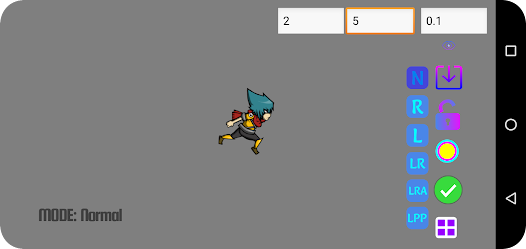
The Sprite animation player has 6 playback modes that can be useful for testing different animation effects. Here are the available playback modes:
1. MODE: Normal
2. MODE: Reversed
3. MODE: Loop
4. MODE: Loop Reversed
5. MODE: Loop Ping Pong
6. MODE: Loop Random
You can change the playback mode while the animation is playing.
Exporting the animation as a gif:
To save the sprite animation as a gif, follow these steps:
1. Open a sprite sheet or a package of separate sprites.
2. Press the "Save as GIF" button.
It's important to note that when saving the sprite animation as a gif, you need to select one of these two modes: "MODE: Loop" or "Loop Reversed". If neither of these modes is selected, the gif will be automatically saved in "MODE: Loop". These modes define how the animation will play in the gif.
In order to facilitate the creation and testing of sprite animations, the Sprite animation player allows you to easily preview the appearance of a sprite animation, whether it's a sprite sheet or a package of separate sprites.
How to test a sprite sheet:
1. Open the sprite sheet you want to play.
2. Specify the rows and columns that the sprite sheet contains.
3. Press the "Ready ✔" button.
How to exclude sprites from the animation:
If you want certain rows or columns of sprites to not be displayed in the animation, you can exclude them by following these steps:
1. Divide the sprite sheet by pressing the button with blue squares.
2. Press the row or column you want to exclude and mark it with an ❌.
To exclude individual sprites, follow these steps:
1. Divide the sprite sheet by pressing the button with blue squares.
2. Press the sprite you want to exclude and mark it with an ❌.
When you divide the sprite sheet, you'll see that each sprite has a number at the top, indicating the index of that sprite. The animation will play in ascending order of indices, meaning from the sprite with the lowest index to the sprite with the highest index. To change the playback order, simply adjust the indices of the sprites. However, it's important to note that you should not repeat the same index in multiple sprites.
To test a package of separate sprites, follow these steps:
1. Open the sprites you want to play.
2. Press the "Ready ✔" button.
The animation will play in ascending order of indices. You can change the index of the sprites to play the animation in the order you desire. If you mark a sprite with an ❌, that sprite will be excluded from the animation.
Playback modes:
The Sprite animation player has 6 playback modes that can be useful for testing different animation effects. Here are the available playback modes:
1. MODE: Normal
2. MODE: Reversed
3. MODE: Loop
4. MODE: Loop Reversed
5. MODE: Loop Ping Pong
6. MODE: Loop Random
You can change the playback mode while the animation is playing.
Exporting the animation as a gif:
To save the sprite animation as a gif, follow these steps:
1. Open a sprite sheet or a package of separate sprites.
2. Press the "Save as GIF" button.
It's important to note that when saving the sprite animation as a gif, you need to select one of these two modes: "MODE: Loop" or "Loop Reversed". If neither of these modes is selected, the gif will be automatically saved in "MODE: Loop". These modes define how the animation will play in the gif.
Updated on
Safety starts with understanding how developers collect and share your data. Data privacy and security practices may vary based on your use, region, and age. The developer provided this information and may update it over time.


What’s new
Save sprite sheet as GIF
You can now save your sprite sheet as a GIF in either Loop or Loop Reversed mode.
Exclude rows and columns
Want to hide certain rows or columns in the animation? First, tap the Split Sprite Sheet button. Then, tap on the row or column you want to exclude and mark it with a ❌.
You can now save your sprite sheet as a GIF in either Loop or Loop Reversed mode.
Exclude rows and columns
Want to hide certain rows or columns in the animation? First, tap the Split Sprite Sheet button. Then, tap on the row or column you want to exclude and mark it with a ❌.
App support
About the developer
Elias Hernández Ferreira
elideveloperhf@gmail.com
Dominican Republic
undefined


