HD Screen Cast to TV
Contains ads
3.7star
4.06K reviews
1M+
Downloads

Everyone
info
About this app
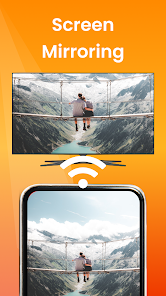
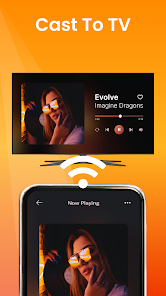
Screen Cast 📲 is a dynamic cast screen app for all your android devices, including tablets. Additionally, you can also use any cast app on Apple devices like iPhones and MacBooks. With this app on your phone, you can cast to tv anything from your device. This screen-mirroring app works in real-time, which means the mirroring will be as smooth as on your phone or laptop.
There will be no lag in casting your android screen on any large screen like a TV or projector. Above all, this smart cast app is fast and easy to use via Chromecast.
Which devices can you use to cast screen?
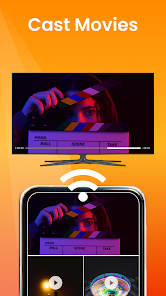
As mentioned above, this app is not only for screen mirroring for smart TV, but also to cast screen on a projector if and when needed. What does this mean? It means that you can now have a theater-like experience at home by playing any movie or video on your handy device to a projector. 📽️
But on which devices can you use this mirror app?
⭕Android Mobile 📱
⭕I-phone
⭕Windows PC 🖥️
⭕Laptop 💻
⭕Macbook
Besides entertainment, you can also use this screen mirroring app for official purposes, i.e., to make presentations from your mobile, tablet, or laptop to a projector, making it easier for you to control your presentation.
Are there photos from a recent trip that you want all your friends and family to see together? Connect this screen-mirroring app to your smart TV in a couple of steps, and let them all watch the photos together.
Steps to connect the TV cast app
Cast screen from your mobile/laptop to a nearby TV/projector easily by following simple steps.
🎯Install the screen mirroring app on your mobile/laptop/tablet
🎯Connect your device and your TV/projector to the same WiFi or data network
🎯Select Screen Mirroring or Video Projector based on where you want to smart cast on your device
🎯You will see a list of brands- select the brand of your device
🎯Choose between Auto mode and Manual mode
🎯Open the screen mirroring display on the TV and enable it
🎯The app will automatically search for a TV or projector connecting to the internet around you and allow you to pair it with the device
🎯That’s about it- you are now successfully using the mirror app on your devices!
Remember
Before you use screen mirroring for smart TV or projector, ensure you have taken care of the following:
⭕Connect both your devices to an active and same internet connection
⭕Enable Miracast Display on your TV and wireless display option on your phone
Can you use this screen mirror app to smart cast anything?
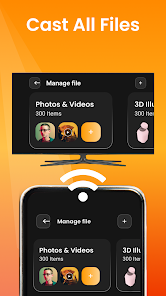
The answer is, “YES!” No matter what you have on your phone, tablet, laptop, or MacBook, you can cast to TV or projector anything and enjoy sitting back.
You can display
✨Audios
✨Videos
✨Gallery
✨Movies
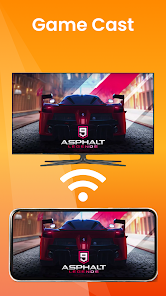
✨Games
✨And more!
Features of the Screen-mirroring app
This TV cast screen-mirroring app is packed with features that will make your Roku screen mirror experience a worthy one. Here are some features to look out for:-
✨Cast screen in high resolution (subject to internet connectivity)
✨Change resolution density based on your need and requirement
✨Auto-detect available devices like smart TV and projector on your device
✨Lock screen automatically orients to landscape mode
✨ Easy to use and connect
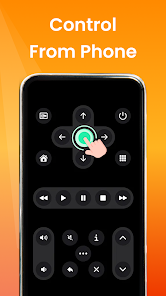
✨Smart control the actions on your mobile, laptop, and tablets, especially when you cast screen during a presentation
✨Use save battery mode when using screen-mirroring by turning off vibration mode on the device
Download the app now and make your screen mirror experience from your device to a smart TV or projector a smooth one!
Note: Latest Projectors to Buy
In the Projector Guide and Screen Cast, we have provided the list as well as the buying links of the best projectors in the market currently. As the technology in this space gets better, we will be updating the list and also providing which projectors are best suited for your needs.
There will be no lag in casting your android screen on any large screen like a TV or projector. Above all, this smart cast app is fast and easy to use via Chromecast.
Which devices can you use to cast screen?
As mentioned above, this app is not only for screen mirroring for smart TV, but also to cast screen on a projector if and when needed. What does this mean? It means that you can now have a theater-like experience at home by playing any movie or video on your handy device to a projector. 📽️
But on which devices can you use this mirror app?
⭕Android Mobile 📱
⭕I-phone
⭕Windows PC 🖥️
⭕Laptop 💻
⭕Macbook
Besides entertainment, you can also use this screen mirroring app for official purposes, i.e., to make presentations from your mobile, tablet, or laptop to a projector, making it easier for you to control your presentation.
Are there photos from a recent trip that you want all your friends and family to see together? Connect this screen-mirroring app to your smart TV in a couple of steps, and let them all watch the photos together.
Steps to connect the TV cast app
Cast screen from your mobile/laptop to a nearby TV/projector easily by following simple steps.
🎯Install the screen mirroring app on your mobile/laptop/tablet
🎯Connect your device and your TV/projector to the same WiFi or data network
🎯Select Screen Mirroring or Video Projector based on where you want to smart cast on your device
🎯You will see a list of brands- select the brand of your device
🎯Choose between Auto mode and Manual mode
🎯Open the screen mirroring display on the TV and enable it
🎯The app will automatically search for a TV or projector connecting to the internet around you and allow you to pair it with the device
🎯That’s about it- you are now successfully using the mirror app on your devices!
Remember
Before you use screen mirroring for smart TV or projector, ensure you have taken care of the following:
⭕Connect both your devices to an active and same internet connection
⭕Enable Miracast Display on your TV and wireless display option on your phone
Can you use this screen mirror app to smart cast anything?
The answer is, “YES!” No matter what you have on your phone, tablet, laptop, or MacBook, you can cast to TV or projector anything and enjoy sitting back.
You can display
✨Audios
✨Videos
✨Gallery
✨Movies
✨Games
✨And more!
Features of the Screen-mirroring app
This TV cast screen-mirroring app is packed with features that will make your Roku screen mirror experience a worthy one. Here are some features to look out for:-
✨Cast screen in high resolution (subject to internet connectivity)
✨Change resolution density based on your need and requirement
✨Auto-detect available devices like smart TV and projector on your device
✨Lock screen automatically orients to landscape mode
✨ Easy to use and connect
✨Smart control the actions on your mobile, laptop, and tablets, especially when you cast screen during a presentation
✨Use save battery mode when using screen-mirroring by turning off vibration mode on the device
Download the app now and make your screen mirror experience from your device to a smart TV or projector a smooth one!
Note: Latest Projectors to Buy
In the Projector Guide and Screen Cast, we have provided the list as well as the buying links of the best projectors in the market currently. As the technology in this space gets better, we will be updating the list and also providing which projectors are best suited for your needs.
Updated on
Safety starts with understanding how developers collect and share your data. Data privacy and security practices may vary based on your use, region, and age. The developer provided this information and may update it over time.

No data shared with third parties
Learn more about how developers declare sharing

No data collected
Learn more about how developers declare collection

Data isn’t encrypted
Data can’t be deleted
Ratings and reviews
3.8
4K reviews

LucyPie's
- Flag inappropriate
August 3, 2024
Awful app, so hard to set up, I watched a video the app linked on how to set it up and it showed how to use a real projecter. Waste of time and space on your phone. If I could I would give it 0 stars.
430 people found this review helpful

Trí Nguyễn
- Flag inappropriate
- Show review history
October 5, 2024
This is a obvious scam, I know the ADS. But its not real because its a phone. A CERTAIN ONE. Its discountined tho also i forgot the name. But hey! Its fake. Also, most phones only have one colour of light.
316 people found this review helpful

Rockin' Johnny
- Flag inappropriate
January 7, 2024
Terrible, just brings up ads telling you to install apps to use it even tiktok came up which I already use but still no joy after opening TT no projector. Beyond a joke.
377 people found this review helpful
App support
About the developer
APPYHIGH TECHNOLOGY LLP
contact@appyhigh.com
TOWER 7-0201, UNIWORLD GARDENS, SOHNA ROAD, SECTOR 47
Gurugram, Haryana 122001
India
+91 85278 77733


