
P to C - QuickShare
Contains ads


Everyone
info
500+
Downloads

Everyone
Learn more


About this app
⚡ Fast and Convenient Online File Transfer ⚡
P to C QuickShare makes it easy to transfer photos, videos, music, PDFs, documents, and other supported files between phones and computers over the internet.
The sending and receiving devices can be connected to different Wi-Fi or mobile networks and can be located far away from each other. Simply upload your files, generate a temporary transfer code, and share that code with the receiving device.
No USB cable, Bluetooth connection, local IP address, or same Wi-Fi network is required.
🚀 Key Features
🌍 Transfer Files from Anywhere
Send and receive files over the internet—even when the devices are connected to different networks or located in different places.
🔢 Easy Transfer-Code System
Create a temporary transfer code for your selected files. Enter the code on the receiving device to find and download the available files.
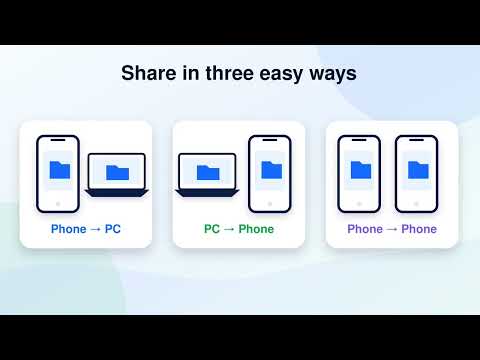
📱 Phone-to-Phone Transfer
Transfer supported files between Android phones without needing Bluetooth pairing or a physical cable.
💻 Phone-to-Computer Transfer
Upload files from your phone and download them on a computer using a supported web browser.
📲 Computer-to-Phone Transfer
Use the available web transfer interface to send supported files from a computer to your phone.
📂 Multiple File Selection
Select and upload multiple photos, videos, audio files, PDFs, documents, and other supported file types.
📊 Upload Progress
View the progress of your file uploads and check when the files are ready to be received.
🔔 Transfer Notifications
Receive useful notifications about active uploads, downloads, and transfer progress when supported by your device.
🔒 Privacy-Focused File Sharing
Transfers use temporary sessions and transfer codes. Files are stored only as required to complete the transfer and may be removed automatically after the transfer session expires.
🎨 Simple and Clean Interface
The straightforward interface makes it easy to select files, generate a transfer code, and begin sharing.
🔌 No USB Cable Required
Transfer files wirelessly without connecting your phone to another device using a USB data cable.
🛠️ How to Send Files
1. Make sure your phone has an active internet connection.
2. Open P to C QuickShare.
3. Select the files you want to send.
4. Upload the selected files.
5. Generate or copy the temporary transfer code.
6. Share the code with the receiving person or device.
📥 How to Receive Files
1. Open P to C QuickShare or the supported receiving webpage.
2. Enter the transfer code provided by the sender.
3. View the available files.
4. Download the files to your device.
📋 Permissions and Their Uses
Internet Access
Required to upload, find, send, and download files through the online transfer service.
Network State
Used to check whether an internet connection is available before starting a transfer.
Notifications
Used to display transfer progress and important information about active file operations.
Foreground Service
May be used to help keep supported transfer operations running when the app is minimized or the screen is locked.
File and Media Access
Used only when necessary to allow you to select, upload, save, or manage files on your device, depending on your Android version.
⚠️ Important Information
• An active internet connection is required on both the sending and receiving devices.
• The devices do not need to be connected to the same Wi-Fi network.
• Wi-Fi or mobile data charges may apply according to your internet service provider.
• Upload and download speed depends on the internet connection of both devices.
• File-size limits, availability periods, and supported file types may depend on the current transfer service configuration.
Transfer your files conveniently between supported phones and computers with P to C QuickShare.
For questions, feedback, or support, contact: sajibrasma@gmail.com
P to C QuickShare makes it easy to transfer photos, videos, music, PDFs, documents, and other supported files between phones and computers over the internet.
The sending and receiving devices can be connected to different Wi-Fi or mobile networks and can be located far away from each other. Simply upload your files, generate a temporary transfer code, and share that code with the receiving device.
No USB cable, Bluetooth connection, local IP address, or same Wi-Fi network is required.
🚀 Key Features
🌍 Transfer Files from Anywhere
Send and receive files over the internet—even when the devices are connected to different networks or located in different places.
🔢 Easy Transfer-Code System
Create a temporary transfer code for your selected files. Enter the code on the receiving device to find and download the available files.
📱 Phone-to-Phone Transfer
Transfer supported files between Android phones without needing Bluetooth pairing or a physical cable.
💻 Phone-to-Computer Transfer
Upload files from your phone and download them on a computer using a supported web browser.
📲 Computer-to-Phone Transfer
Use the available web transfer interface to send supported files from a computer to your phone.
📂 Multiple File Selection
Select and upload multiple photos, videos, audio files, PDFs, documents, and other supported file types.
📊 Upload Progress
View the progress of your file uploads and check when the files are ready to be received.
🔔 Transfer Notifications
Receive useful notifications about active uploads, downloads, and transfer progress when supported by your device.
🔒 Privacy-Focused File Sharing
Transfers use temporary sessions and transfer codes. Files are stored only as required to complete the transfer and may be removed automatically after the transfer session expires.
🎨 Simple and Clean Interface
The straightforward interface makes it easy to select files, generate a transfer code, and begin sharing.
🔌 No USB Cable Required
Transfer files wirelessly without connecting your phone to another device using a USB data cable.
🛠️ How to Send Files
1. Make sure your phone has an active internet connection.
2. Open P to C QuickShare.
3. Select the files you want to send.
4. Upload the selected files.
5. Generate or copy the temporary transfer code.
6. Share the code with the receiving person or device.
📥 How to Receive Files
1. Open P to C QuickShare or the supported receiving webpage.
2. Enter the transfer code provided by the sender.
3. View the available files.
4. Download the files to your device.
📋 Permissions and Their Uses
Internet Access
Required to upload, find, send, and download files through the online transfer service.
Network State
Used to check whether an internet connection is available before starting a transfer.
Notifications
Used to display transfer progress and important information about active file operations.
Foreground Service
May be used to help keep supported transfer operations running when the app is minimized or the screen is locked.
File and Media Access
Used only when necessary to allow you to select, upload, save, or manage files on your device, depending on your Android version.
⚠️ Important Information
• An active internet connection is required on both the sending and receiving devices.
• The devices do not need to be connected to the same Wi-Fi network.
• Wi-Fi or mobile data charges may apply according to your internet service provider.
• Upload and download speed depends on the internet connection of both devices.
• File-size limits, availability periods, and supported file types may depend on the current transfer service configuration.
Transfer your files conveniently between supported phones and computers with P to C QuickShare.
For questions, feedback, or support, contact: sajibrasma@gmail.com
Fast file transfer & share files from phone to PC instantly over Internet.
Updated on
Safety starts with understanding how developers collect and share your data. Data privacy and security practices may vary based on your use, region, and age. The developer provided this information and may update it over time.


What’s new
Code-Based Sharing: Receive files instantly using a simple 6-digit transfer code (files stored up to 24 hours).
Smoother Downloads: Added retry and resume support with enhanced progress tracking.
Better Security: Added read-only receiver access and updated privacy policies.
Bug Fixes: Overall performance improvements and stability enhancements.
Smoother Downloads: Added retry and resume support with enhanced progress tracking.
Better Security: Added read-only receiver access and updated privacy policies.
Bug Fixes: Overall performance improvements and stability enhancements.
Everyone
Learn moreApp support
phone
Phone number
+8801845692666
About the developer
Md.Abu Bakkar Siddique Sajib
sajibrasma@gmail.com
Vill-Payarapur, Post-Gaibandha, Unioun- Boyali Dist-Gaibandha
Gaibandha 5700
Bangladesh


