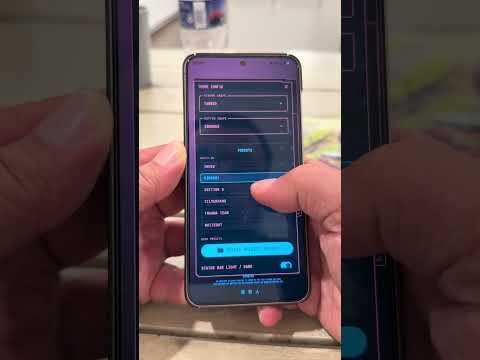

PhantomShell Launcher

star
38 reviews

Everyone
info
100+
Downloads

Everyone
Learn more


About this app
Phantom Shell works kind of like having a command line for your phone. Instead of digging through menus or tapping a bunch of icons, you just type what you want to do. If you type an app’s name, it opens. If you add a search after it, it’ll search inside that app—for example, typing “YouTube GTA 6” opens YouTube with GTA 6 already searched.
It can also search Google, Amazon, Reddit, Maps, the Play Store, Instagram, and other services just by typing a command. You can call or text people, manage contacts, create folders, take notes, set reminders, timers, alarms, and even do math without opening separate apps.
The coolest part is that you can make your own commands. So if you always search Google, you could make “G” mean Google, and then typing “G weather” would instantly search Google for the weather. You can also customize buttons, folders, and shortcuts so the launcher works the way you think.
It even has system tools built in, like checking battery, RAM, storage, clipboard history, toggling the flashlight, muting your phone, managing permissions, and launching apps by package name if you’re into more advanced stuff.
Basically, it’s designed so almost everything you normally do by tapping around your phone can be done by typing a quick command instead. Once you get used to it, it’s often much faster than using a traditional home screen. And once you start creating shortcuts and adding the shortcuts to buttons you can execute a task in a matter of seconds without ever opening an app.
It can also search Google, Amazon, Reddit, Maps, the Play Store, Instagram, and other services just by typing a command. You can call or text people, manage contacts, create folders, take notes, set reminders, timers, alarms, and even do math without opening separate apps.
The coolest part is that you can make your own commands. So if you always search Google, you could make “G” mean Google, and then typing “G weather” would instantly search Google for the weather. You can also customize buttons, folders, and shortcuts so the launcher works the way you think.
It even has system tools built in, like checking battery, RAM, storage, clipboard history, toggling the flashlight, muting your phone, managing permissions, and launching apps by package name if you’re into more advanced stuff.
Basically, it’s designed so almost everything you normally do by tapping around your phone can be done by typing a quick command instead. Once you get used to it, it’s often much faster than using a traditional home screen. And once you start creating shortcuts and adding the shortcuts to buttons you can execute a task in a matter of seconds without ever opening an app.
PhantomShell is a Terminal Cyberpunk Launcher with loads of customization
Updated on
Safety starts with understanding how developers collect and share your data. Data privacy and security practices may vary based on your use, region, and age. The developer provided this information and may update it over time.
- No data shared with third partiesLearn more about how developers declare sharing
- No data collectedLearn more about how developers declare collection


Ratings and reviews
38 reviews

Demian Servin
- Flag inappropriate
August 4, 2026
I love this launcher. It completely changed the way I use my phone. PhantomShell should not be seen as a normal launcher alternative but as a complete paradigm shift to how phones are used. I love the look and functionality. If I could request two things: bug - sometimes the drag up from bottom gesture to bring up app selector doesn't work. I'm not sure why that is. I'm on a Z Flip8 Ultra. Second request: if we could get some simple widgets like weather that'd be amazing. <3
1 person found this review helpful

Ben Jones
- Flag inappropriate
August 1, 2026
I've tried almost every launcher out there and this one is by far the most intriguing and innovative concept. It takes a little bit of time to set up and tweak, but once you are locked in it's crazy fast and efficient. It's definitely a conversation starter when someone sees my phone, especially if they're an iPhone user lol
2 people found this review helpful

Mirsad Meskovic
- Flag inappropriate
July 28, 2026
Outtie never dissapoints! Now he enters a new teritory, launchers and result ... awesome launcher. It is very easy to customize it to your liking. You can resize the windows as you like, change buttons to folders (my favorite), and command it to do what you need, and he left the possibility to use it with live wallpapers. Simply, great product. Kudos and keep it coming with updates and new features !
2 people found this review helpful
What’s new
Edit mode! Now you dont need to use the terminal to get everything setup to your liking. Long press on the homescreen to find it.
Updated Settings to make things easier to find
Added toggle for All Caps
Added a few more presets
Bug fixes
Updated Settings to make things easier to find
Added toggle for All Caps
Added a few more presets
Bug fixes
Everyone
Learn moreApp support
About the developer
Raymond Mattison
ray@outtiefive.com
1106 Owen Way
Sykesville, MD 21784-8456
United States