
CC-Viewer : コミケ カタログ ブラウザ
Contains ads
10K+
Downloads

Everyone
info
About this app
★Important★
The latest version is V1.8.2. The version is displayed in the app's title bar.
・DB can be initialized with C105 catalog data.
-Local file access has become progressively stricter in recent versions of Android, and operations related to local folders and files such as reading/exporting checklist files/sharing as files, specifying data folders, saving/restoring settings, etc. It may not be possible.
If you are unable to import or export local checklists, please try linking with web catalog favorites. Please refer to the website for details. https://www.earthport.jp/hadukiclub/
-For models earlier than Android 4.1, the OS components do not support TLS 1.2, so the web catalog cannot be used.
・A valid Web Catalog Gold member account is required to use Web Catalog data. Specifically, when you start the app, you need to access the site and update the "access token". If the access token cannot be updated, browsing of the catalog will be restricted even if the DB has been initialized.
* Closing CC-Viewer with the back key twice does not actually close the app, so there is no need to worry too much, but please be careful not to close it in the background when there is no network connection.
*For your peace of mind, log in to the web catalog by pressing "Favorite Access" once a day before going to the venue.
[ver1.8.2]
■C102 Web catalog compatible.
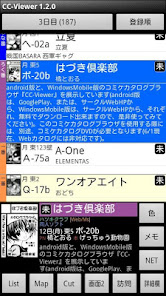
★From C102, it is now possible to apply for 2 spaces (combined space) in the same circle, so circles with 2 spaces in the same circle will be displayed twice on the cut screen and search results list.
(Circle cuts vary depending on the space.)
When importing favorites or checklists, only the first one found will be included in the checklist.
■Add menu display (≡) button to toolbar.
■Forcibly change the Twitter URL of the circle data to https.
■Reflect the event number on the status bar immediately after initializing the database.
■Fixed settings save/restore function.
[ver1.8.1]
■Fixed an issue where the file dialog would terminate incorrectly on Android 11 (API30) or later.
■Save/restore settings supported for Android 10 (API29) or later.
■Fixed circle data update failure.
This is an offline browser for the Comiket web catalog. A separate Comiket Web Catalog Gold account is required.
---Notice of CC-ViewerEX (paid version)---
CC-ViewerEX is available as a paid version (donation version) of CC-Viewer. CC-ViewerEX allows you to display updated cuts (color cuts) and images of distributed materials.
(→ https://play.google.com/store/apps/details?id=jp.ne.hadukiclub.ccviewerex)
The free version is supposed to display advertisements, but I don't think they will be displayed because the distribution service you were using has ended.
While using Comiket Web Catalog data, access the Comiket Web Catalog when starting the app and check the authority of your Gold account.
---Requests for those using the Comiket web catalog linkage function---
*At least on devices older than Anroid 4.1, it cannot be used because the device does not support the communication method (TLS 1.2 or higher) required by the Comiket Web Catalog.
Browser apps may have their own support, so even if you can access it with your browser, you may not be able to access it with CC-Viewer.
------
*Compatible with the data of ``a site that aims to convert the circle list and layout diagram of doujinshi sale events published on the Internet into a format that can be used with Katalom-based tools and make it portable at the sale venue.'' did. For more information on available events, please refer to the web page (http://djtools.net76.net/). (Don't tell me that you think the name should be shortened!)
[How to use help page]
We are currently creating a usage help page.
*Please refer to the initial installation method at the bottom of this explanation.
[introduction]
Since this is a new browser, this is especially amazing! Although there is no such part, we focused on compatible OS and operating speed when creating it. If you have trouble using other Comiket Catalog browsers, or if they are slow or slow, you may find that the response is within an acceptable range, so please try it.
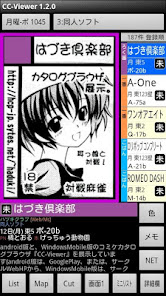
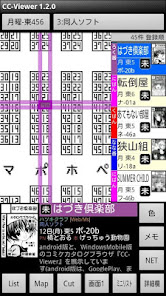
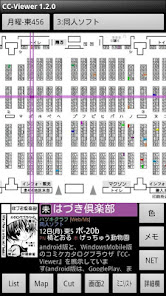
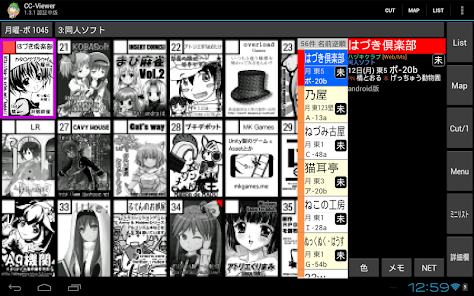
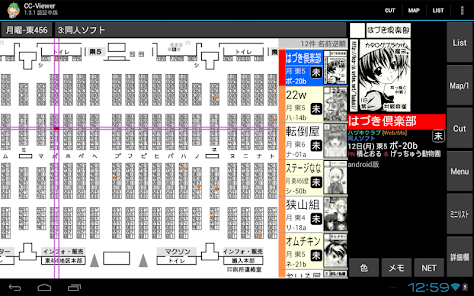
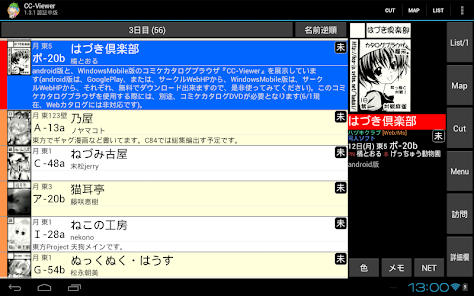
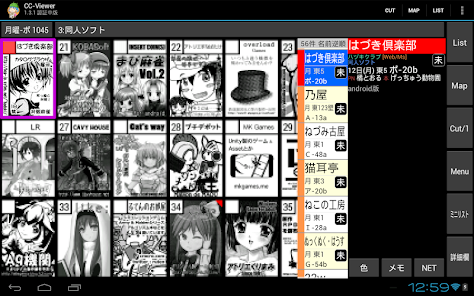
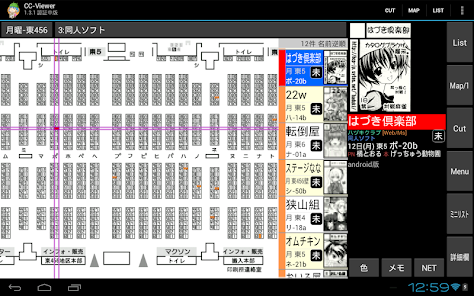
When the cut/map/checklist screen is displayed, almost all of the screen parts that are displayed (such as the circle details field) and the actions that occur when you press the buttons displayed on the bottom or right side at startup can be customized. Please use it as you like.
★Recommended★ First, try changing the number of buttons. You can increase or decrease from the initial state.
[Supported OS/CPU]
OS: Android4 or later
CPU: ARM type (*The app also includes an x86 version. Operation has not been confirmed.)
*Android 4.1 or later is required to use the Comiket Web Catalog. You must also be able to access the site using a web browser. However, please note that the browser app may have its own support regardless of the OS functions, so even if you can access it with a browser, it does not necessarily mean that you can access it with CC-Viewe.
[Supported data (any of the following)]
・Supports data acquisition using Comiket Web Catalog (Gold account).
- Compatible with data for other events published on ``Published on the Internet - Target Site''.
*Comiket DVD Catalom from C87 onwards is not supported (Comiket DVD Catalom does not release data to third-party apps)
[Notes]
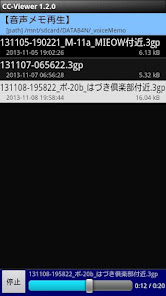
The voice memo function (recording) may not work properly depending on the performance of your Android device. If you plan to use voice memos during the event, please test voice memos (recording and playback) in advance.
[Initial introduction method]
A more detailed manual is available below.
http://www.earthport.jp/hadukiclub/cc-viewer/CC-Viewer_inst_201708.pdf
■■■ Minimum guidance ■■■
[1] Confirmation of Comiket Web Catalog Gold account
Please make sure you have a Comiket Web Catalog Gold account. (Generally, a one-month contract that includes the Comiket period is the minimum required period)
[2] Database initialization/database update
1. Select "[menu] → Settings → Catalog Data Settings → Use Comiket Web Catalog"
2. "Login → <'Authenticate app linkage' on the login authentication web screen>"
3. After checking the event number, select "DB Initialization" to obtain initial database information from the Comiket Web Catalog.
In addition, by ``Update Circle Information'', you can update each circle's updated information and distribution information to the latest information.
[3] Comiket web catalog favorites collaboration
Select "[menu] → Settings → Checklist operation → Use Comiket web catalog → Login → <'Authenticate app linkage' on the login authentication web screen>".
・Click "Load Favorites" to import favorite data from the Comiket Web Catalog into CC-Viewer (new load).
-Click "Export Favorites" to add the CC-Viewer checklist to your Comiket Web Catalog favorites.
[4] Circle check/visit flag change
In the default CC-Viewer settings, you can change the check color and visit flag by long-tapping or double-tapping the cut screen, map screen, or circle details screen (near the circle name).
You can also change the check color and visit flag by long-tapping or double-tapping near the circle name display field on the circle details screen.
[5] Customization
Almost all of the display/non-display of each screen, the contents of displayed buttons, and the number of displayed buttons can be customized in the screen layout settings and common display/operation settings for each screen in the settings screen. .
The latest version is V1.8.2. The version is displayed in the app's title bar.
・DB can be initialized with C105 catalog data.
-Local file access has become progressively stricter in recent versions of Android, and operations related to local folders and files such as reading/exporting checklist files/sharing as files, specifying data folders, saving/restoring settings, etc. It may not be possible.
If you are unable to import or export local checklists, please try linking with web catalog favorites. Please refer to the website for details. https://www.earthport.jp/hadukiclub/
-For models earlier than Android 4.1, the OS components do not support TLS 1.2, so the web catalog cannot be used.
・A valid Web Catalog Gold member account is required to use Web Catalog data. Specifically, when you start the app, you need to access the site and update the "access token". If the access token cannot be updated, browsing of the catalog will be restricted even if the DB has been initialized.
* Closing CC-Viewer with the back key twice does not actually close the app, so there is no need to worry too much, but please be careful not to close it in the background when there is no network connection.
*For your peace of mind, log in to the web catalog by pressing "Favorite Access" once a day before going to the venue.
[ver1.8.2]
■C102 Web catalog compatible.
★From C102, it is now possible to apply for 2 spaces (combined space) in the same circle, so circles with 2 spaces in the same circle will be displayed twice on the cut screen and search results list.
(Circle cuts vary depending on the space.)
When importing favorites or checklists, only the first one found will be included in the checklist.
■Add menu display (≡) button to toolbar.
■Forcibly change the Twitter URL of the circle data to https.
■Reflect the event number on the status bar immediately after initializing the database.
■Fixed settings save/restore function.
[ver1.8.1]
■Fixed an issue where the file dialog would terminate incorrectly on Android 11 (API30) or later.
■Save/restore settings supported for Android 10 (API29) or later.
■Fixed circle data update failure.
This is an offline browser for the Comiket web catalog. A separate Comiket Web Catalog Gold account is required.
---Notice of CC-ViewerEX (paid version)---
CC-ViewerEX is available as a paid version (donation version) of CC-Viewer. CC-ViewerEX allows you to display updated cuts (color cuts) and images of distributed materials.
(→ https://play.google.com/store/apps/details?id=jp.ne.hadukiclub.ccviewerex)
The free version is supposed to display advertisements, but I don't think they will be displayed because the distribution service you were using has ended.
While using Comiket Web Catalog data, access the Comiket Web Catalog when starting the app and check the authority of your Gold account.
---Requests for those using the Comiket web catalog linkage function---
*At least on devices older than Anroid 4.1, it cannot be used because the device does not support the communication method (TLS 1.2 or higher) required by the Comiket Web Catalog.
Browser apps may have their own support, so even if you can access it with your browser, you may not be able to access it with CC-Viewer.
------
*Compatible with the data of ``a site that aims to convert the circle list and layout diagram of doujinshi sale events published on the Internet into a format that can be used with Katalom-based tools and make it portable at the sale venue.'' did. For more information on available events, please refer to the web page (http://djtools.net76.net/). (Don't tell me that you think the name should be shortened!)
[How to use help page]
We are currently creating a usage help page.
*Please refer to the initial installation method at the bottom of this explanation.
[introduction]
Since this is a new browser, this is especially amazing! Although there is no such part, we focused on compatible OS and operating speed when creating it. If you have trouble using other Comiket Catalog browsers, or if they are slow or slow, you may find that the response is within an acceptable range, so please try it.
When the cut/map/checklist screen is displayed, almost all of the screen parts that are displayed (such as the circle details field) and the actions that occur when you press the buttons displayed on the bottom or right side at startup can be customized. Please use it as you like.
★Recommended★ First, try changing the number of buttons. You can increase or decrease from the initial state.
[Supported OS/CPU]
OS: Android4 or later
CPU: ARM type (*The app also includes an x86 version. Operation has not been confirmed.)
*Android 4.1 or later is required to use the Comiket Web Catalog. You must also be able to access the site using a web browser. However, please note that the browser app may have its own support regardless of the OS functions, so even if you can access it with a browser, it does not necessarily mean that you can access it with CC-Viewe.
[Supported data (any of the following)]
・Supports data acquisition using Comiket Web Catalog (Gold account).
- Compatible with data for other events published on ``Published on the Internet - Target Site''.
*Comiket DVD Catalom from C87 onwards is not supported (Comiket DVD Catalom does not release data to third-party apps)
[Notes]
The voice memo function (recording) may not work properly depending on the performance of your Android device. If you plan to use voice memos during the event, please test voice memos (recording and playback) in advance.
[Initial introduction method]
A more detailed manual is available below.
http://www.earthport.jp/hadukiclub/cc-viewer/CC-Viewer_inst_201708.pdf
■■■ Minimum guidance ■■■
[1] Confirmation of Comiket Web Catalog Gold account
Please make sure you have a Comiket Web Catalog Gold account. (Generally, a one-month contract that includes the Comiket period is the minimum required period)
[2] Database initialization/database update
1. Select "[menu] → Settings → Catalog Data Settings → Use Comiket Web Catalog"
2. "Login → <'Authenticate app linkage' on the login authentication web screen>"
3. After checking the event number, select "DB Initialization" to obtain initial database information from the Comiket Web Catalog.
In addition, by ``Update Circle Information'', you can update each circle's updated information and distribution information to the latest information.
[3] Comiket web catalog favorites collaboration
Select "[menu] → Settings → Checklist operation → Use Comiket web catalog → Login → <'Authenticate app linkage' on the login authentication web screen>".
・Click "Load Favorites" to import favorite data from the Comiket Web Catalog into CC-Viewer (new load).
-Click "Export Favorites" to add the CC-Viewer checklist to your Comiket Web Catalog favorites.
[4] Circle check/visit flag change
In the default CC-Viewer settings, you can change the check color and visit flag by long-tapping or double-tapping the cut screen, map screen, or circle details screen (near the circle name).
You can also change the check color and visit flag by long-tapping or double-tapping near the circle name display field on the circle details screen.
[5] Customization
Almost all of the display/non-display of each screen, the contents of displayed buttons, and the number of displayed buttons can be customized in the screen layout settings and common display/operation settings for each screen in the settings screen. .
Updated on
Safety starts with understanding how developers collect and share your data. Data privacy and security practices may vary based on your use, region, and age. The developer provided this information and may update it over time.

No data shared with third parties
Learn more about how developers declare sharing

No data collected
Learn more about how developers declare collection
What’s new
[ver1.8.2]
■Support C102.
★Since C102, a Circle can claim adjacent 2 spaces at once. Then the circle has 2 spaces will be shows twice in same time.
When import Favorite or Checklist, The first one of the two found will be adopted into the Checklist.
and other few little bug fix updates.
■Support C102.
★Since C102, a Circle can claim adjacent 2 spaces at once. Then the circle has 2 spaces will be shows twice in same time.
When import Favorite or Checklist, The first one of the two found will be adopted into the Checklist.
and other few little bug fix updates.
App support
About the developer
福井真吾
hadukiclub@gmail.com
此花区伝法1丁目1−1 312
大阪市, 大阪府 554-0002
Japan
undefined
