
Partial Screen
এপত কৰা ক্ৰয়

star
৮.৪৯ হাজাৰ টা পৰ্যালোচনা

সকলো
info
১ নিযুত+
ডাউনল’ড

সকলো
অধিক জানক


এই এপ্টোৰ বিষয়ে
If you have a broken, damaged or defective display where appear all kinds of accidental, random, arbitrary, self, ghost ... but all the same unwanted touch.
Then this program can help you block the touch in those parts of the screen where they appear.
By blocking the touch, it means intercepting all kinds of touches and gestures in the specified zone.
There are two types of adding areas with locking of touch - automatic and manual modes.
After the automatic screen analysis running, all touches are intercepted for the established time interval to identify the lock zones. (DO NOT TOUCH THE SCREEN DURING ANALYSIS RUNNING!)
When analysis ended, the intercepted clicks are analyzed, minimized and combined into zones with blocked touches.
In manual mode, you need to add the necessary lock area yourself. Choose "add manual region" and place the area of the desired size on to the screen.
It is also possible in the touch detector to track those parts of the screen where spontaneous touches occur.
At the top of the screen, there are first two state switches for the two types of blocking. Enable both if you use zones added by automatic and manual mode.
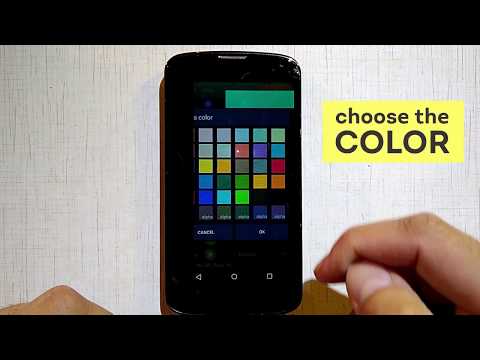
In the area manager you can: select active / inactive areas, change the color, size and position of the area, delete the unnecessary ones.
Also available function of rounding the corners of the screen, in the settings it is possible to choose the color and radius. Added rounded corners of the screen are displayed on top of all possible elements.
The bubble mode allows you to lock the entire screen by double-tap on the indicator. The indicator is displayed on top of all view and can be placed in any part of the screen.
FOR SUBSCRIBERS, advanced functionality is available:
- editing areas in the manager;
- the full overlap area mode (on top of all elements, for versions lower Android 8.0);
- auto start service at power on;
- change the transparency of all areas;
- the maximum count of areas is 50% more;
- touch detector for detecting damaged zones;
- bubble screen block mode;
- preload mode, for load blocked areas from a local file;
- rounded corners of the screen.
Notice: full overlap, are not supported for Android 8.0 and higher versions!
A short video review will help you understand the operation of the program better: https://www.youtube.com/watch?v=0tpF5fa2_MA
Additional materials: https://sites.google.com/view/che-development/partial-screen
Did you have any questions or suggestions? Send an email: chedevelop.ia@gmail.com
Also, if you find this program useful, you can buy some Thankcoins.
For Samsung device: To prevent the app stoped by itself:
System Settings > Device Maintenance > Battery > Unmonitored apps > Add apps > checked Partial Screen
For Oppo device: To prevent the app stoped by itself:
Security Center > Battery > Enable Smart power-saving mode > Power-saving app control and management > Add apps > checked Partial Screen
For Xiaomi smartphone: need manually grant "Draw over other apps" permission (Go to Setting > Installed apps > Partial Screen > Permission manager > Display pop-up window > "Allow")
To prevent the app turn off when clear RAM: Go to Security Tab > Permission > Auto-start management > Add auto-start apps, checked Partial Screen
For Huawei smartphone: Open Phone Manager apps (or Settings app) > Permission Manager > choose Applications tab > select Partial Screen > enable Draw over other apps
Then this program can help you block the touch in those parts of the screen where they appear.
By blocking the touch, it means intercepting all kinds of touches and gestures in the specified zone.
There are two types of adding areas with locking of touch - automatic and manual modes.
After the automatic screen analysis running, all touches are intercepted for the established time interval to identify the lock zones. (DO NOT TOUCH THE SCREEN DURING ANALYSIS RUNNING!)
When analysis ended, the intercepted clicks are analyzed, minimized and combined into zones with blocked touches.
In manual mode, you need to add the necessary lock area yourself. Choose "add manual region" and place the area of the desired size on to the screen.
It is also possible in the touch detector to track those parts of the screen where spontaneous touches occur.
At the top of the screen, there are first two state switches for the two types of blocking. Enable both if you use zones added by automatic and manual mode.
In the area manager you can: select active / inactive areas, change the color, size and position of the area, delete the unnecessary ones.
Also available function of rounding the corners of the screen, in the settings it is possible to choose the color and radius. Added rounded corners of the screen are displayed on top of all possible elements.
The bubble mode allows you to lock the entire screen by double-tap on the indicator. The indicator is displayed on top of all view and can be placed in any part of the screen.
FOR SUBSCRIBERS, advanced functionality is available:
- editing areas in the manager;
- the full overlap area mode (on top of all elements, for versions lower Android 8.0);
- auto start service at power on;
- change the transparency of all areas;
- the maximum count of areas is 50% more;
- touch detector for detecting damaged zones;
- bubble screen block mode;
- preload mode, for load blocked areas from a local file;
- rounded corners of the screen.
Notice: full overlap, are not supported for Android 8.0 and higher versions!
A short video review will help you understand the operation of the program better: https://www.youtube.com/watch?v=0tpF5fa2_MA
Additional materials: https://sites.google.com/view/che-development/partial-screen
Did you have any questions or suggestions? Send an email: chedevelop.ia@gmail.com
Also, if you find this program useful, you can buy some Thankcoins.
For Samsung device: To prevent the app stoped by itself:
System Settings > Device Maintenance > Battery > Unmonitored apps > Add apps > checked Partial Screen
For Oppo device: To prevent the app stoped by itself:
Security Center > Battery > Enable Smart power-saving mode > Power-saving app control and management > Add apps > checked Partial Screen
For Xiaomi smartphone: need manually grant "Draw over other apps" permission (Go to Setting > Installed apps > Partial Screen > Permission manager > Display pop-up window > "Allow")
To prevent the app turn off when clear RAM: Go to Security Tab > Permission > Auto-start management > Add auto-start apps, checked Partial Screen
For Huawei smartphone: Open Phone Manager apps (or Settings app) > Permission Manager > choose Applications tab > select Partial Screen > enable Draw over other apps
Intercepts and blocks random arbitrary self ghost touches on the damaged display
আপডে’ট কৰা তাৰিখ
বিকাশকৰ্তাসকলে আপোনাৰ ডেটা কেনেকৈ সংগ্ৰহ আৰু শ্বেয়াৰ কৰে সেয়া বুজি পোৱাৰ জৰিয়তে সুৰক্ষা আৰম্ভ হয়। ডেটাৰ গোপনীয়তা আৰু সুৰক্ষা প্ৰণালী আপোনাৰ ব্যৱহাৰ, অঞ্চল আৰু বয়সৰ ওপৰত ভিত্তি কৰি ভিন্ন হ’ব পাৰে। বিকাশকৰ্তাগৰাকীয়ে এই তথ্যখিনি প্ৰদান কৰিছে আৰু সময়ৰ লগে লগে এয়া আপডে’ট কৰিব পাৰে।


মূল্যাংকন আৰু পৰ্যালোচনাসমূহ
৮.৩ হাজাৰ টা পৰ্যালোচনা
নতুন কি আছে
Version 1.18
- Improve stability
- Rework rotation logic
- Improve stability
- Rework rotation logic
সকলো
অধিক জানকএপৰ সমৰ্থন
বিকাশকৰ্তাৰ বিষয়ে
Ichenets Andrii
chedevelop.ia@gmail.com
street Vadyma Hetmana,building 46-a,Housing 6,flat 54
Kiev
Ukraine
03058


