
Floating Image
In-app purchases

star
150 reviews

Everyone
info
10K+
Downloads


About this app
Keep reference images and animated GIFs visible over other apps with Floating Image. Use them while drawing, comparing designs, studying, teaching, recording your screen, or multitasking.
Arrange your images
Move, resize and rotate images with gestures. Use the Layer Editor to adjust opacity, hide or lock images, and change their layer order. Pause, resume or replay GIFs, with playback state saved. The same hide gesture setting works for still images and GIFs.
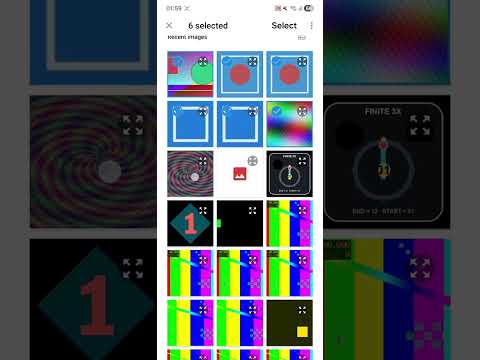
Add images with Photo Picker or the system file picker. Use Open With for one image or Share to add several from another app. Files are imported individually, so one failed import does not remove images already added.
Portrait and landscape layouts
In Settings > Images > Orientation layout, choose automatic position adjustment (the default) or save each image's position, size and angle separately for portrait and landscape. Layer order, opacity, visibility and lock settings stay shared between orientations. Both modes are free.
Free and Pro
- Free: up to 2 floating images.
- Pro: up to 9 images, or up to 30 with High Capacity Image Mode.
- Pro adds Pass Through lock mode, angle reset and clockwise 90° rotation buttons.
- One-time purchase, no subscription.
Quick access
The optional Control Dot opens the Layer Editor over other apps. Its temporary modes control visibility and locking for all images without changing saved layer settings. Notification and Quick Settings controls are also available.
Opacity and touch
The optional, experimental opacity extension allows image opacity up to 100%. You can also choose to start newly added images at 100% without changing existing images.
Outside Pass Through lock mode, transparent areas of still images and paused GIFs let you use the app underneath: on Android 10 and 11 even at 100% image opacity; on Android 12 and later at 79% or lower. For GIFs, the paused frame’s transparency must be processed first.
On Android 12 and later, images above 79% opacity block touches to the app underneath across their full rectangular area unless Pass Through lock mode is active. This includes transparent areas and empty corners. Canvas shows this area by default; hiding it does not change this touch behavior.
Pass Through lock mode is the Pro option called “Let Touches Pass Through” under “Locked Image Behavior” in Settings. It lets you interact with the app underneath across the whole area of locked images and GIFs, including visible image content. On Android 12 and later, their effective opacity is limited to 79% or lower and may be reduced further when locked images overlap. The 100% opacity extension and Canvas settings do not override these limits.
Formats and import limits
Supports PNG, JPG/JPEG, WebP and animated GIF.
- Still images: up to 100 MiB, 20,000 px per edge and 200 MP; resized to a longest side of up to 4096 px.
- Animated GIFs: up to 50 MiB, 1,800 frames, 10 min and 60 fps; decoded frames sampled to at most 2048 px per edge and 4 MP.
- GIFs up to 100 MiB exceeding animation limits may import as still images if the first frame decodes safely. GIFs over 100 MiB or with invalid GIF headers are rejected.
- If GIF playback reaches a resource or decoding limit, the app may show a saved preview without deleting the stored animation.
Source files are unchanged.
Important notes
On Android 12 and later, Android's overlay touch-security threshold is 80%. Floating Image uses 79% as its standard limit, leaving a one-percentage-point margin.
Image-count and device overlay limits apply. High Capacity Image Mode may lower the resolution of floating images. Some secure apps and system screens block overlays. On some vivo/OriginOS devices, keep Floating Image in the recent apps list to keep the Control Dot available.
Privacy
Images stay on your device and are not uploaded to a developer server. Overlay permission is required; notification and battery settings are optional.
Arrange your images
Move, resize and rotate images with gestures. Use the Layer Editor to adjust opacity, hide or lock images, and change their layer order. Pause, resume or replay GIFs, with playback state saved. The same hide gesture setting works for still images and GIFs.
Add images with Photo Picker or the system file picker. Use Open With for one image or Share to add several from another app. Files are imported individually, so one failed import does not remove images already added.
Portrait and landscape layouts
In Settings > Images > Orientation layout, choose automatic position adjustment (the default) or save each image's position, size and angle separately for portrait and landscape. Layer order, opacity, visibility and lock settings stay shared between orientations. Both modes are free.
Free and Pro
- Free: up to 2 floating images.
- Pro: up to 9 images, or up to 30 with High Capacity Image Mode.
- Pro adds Pass Through lock mode, angle reset and clockwise 90° rotation buttons.
- One-time purchase, no subscription.
Quick access
The optional Control Dot opens the Layer Editor over other apps. Its temporary modes control visibility and locking for all images without changing saved layer settings. Notification and Quick Settings controls are also available.
Opacity and touch
The optional, experimental opacity extension allows image opacity up to 100%. You can also choose to start newly added images at 100% without changing existing images.
Outside Pass Through lock mode, transparent areas of still images and paused GIFs let you use the app underneath: on Android 10 and 11 even at 100% image opacity; on Android 12 and later at 79% or lower. For GIFs, the paused frame’s transparency must be processed first.
On Android 12 and later, images above 79% opacity block touches to the app underneath across their full rectangular area unless Pass Through lock mode is active. This includes transparent areas and empty corners. Canvas shows this area by default; hiding it does not change this touch behavior.
Pass Through lock mode is the Pro option called “Let Touches Pass Through” under “Locked Image Behavior” in Settings. It lets you interact with the app underneath across the whole area of locked images and GIFs, including visible image content. On Android 12 and later, their effective opacity is limited to 79% or lower and may be reduced further when locked images overlap. The 100% opacity extension and Canvas settings do not override these limits.
Formats and import limits
Supports PNG, JPG/JPEG, WebP and animated GIF.
- Still images: up to 100 MiB, 20,000 px per edge and 200 MP; resized to a longest side of up to 4096 px.
- Animated GIFs: up to 50 MiB, 1,800 frames, 10 min and 60 fps; decoded frames sampled to at most 2048 px per edge and 4 MP.
- GIFs up to 100 MiB exceeding animation limits may import as still images if the first frame decodes safely. GIFs over 100 MiB or with invalid GIF headers are rejected.
- If GIF playback reaches a resource or decoding limit, the app may show a saved preview without deleting the stored animation.
Source files are unchanged.
Important notes
On Android 12 and later, Android's overlay touch-security threshold is 80%. Floating Image uses 79% as its standard limit, leaving a one-percentage-point margin.
Image-count and device overlay limits apply. High Capacity Image Mode may lower the resolution of floating images. Some secure apps and system screens block overlays. On some vivo/OriginOS devices, keep Floating Image in the recent apps list to keep the Control Dot available.
Privacy
Images stay on your device and are not uploaded to a developer server. Overlay permission is required; notification and battery settings are optional.
Float images and animated GIFs over other apps, with layers and touch control.
Updated on
Safety starts with understanding how developers collect and share your data. Data privacy and security practices may vary based on your use, region, and age. The developer provided this information and may update it over time.
- No data shared with third partiesLearn more about how developers declare sharing
- No data collectedLearn more about how developers declare collection


Ratings and reviews
139 reviews

The Bishop (Andy)
- Flag inappropriate
September 15, 2026
What a marvellous app! The sheer amount of configuration options and the app's superb performance make it a delight to use, albeit a bit confusing at first. It's easily the best floating image viewer out there and is easily worth the small amount for the Pro version. Well done to the talented developer!
Xinyi Tools
September 15, 2026
Thank you, Andy! This really made my day. I’ve put a lot of care into the details and performance, so it means a lot to hear that you’re enjoying the app. There’s quite a bit to explore at first, and I appreciate you taking the time to get to know it and write such a thoughtful review. Your words are a real encouragement!

Jadeed Pangaibat
- Flag inappropriate
July 22, 2026
Really good app! but it would be even better if there was an option you can turn on in the settings that allows you to close the window by tapping the dot button... I often find myself repeatedly clicking the button trying to close the window.
2 people found this review helpful
Xinyi Tools
July 23, 2026
Thank you again for the suggestion. This has now been added in the latest version: tap the control dot once to open the Layer Editor, then tap it again to close it.

Gami I
- Flag inappropriate
- Show review history
September 5, 2026
Awesome! Really glad to see GIF overlay and the experimental 100% opacity option. PNG touch‑through on transparent areas is great, though it only works under 79% opacity. Blank sections of paused GIFs also support touch‑through with this same opacity cap. It’s a bit of a shame full Pass‑Through is pro‑only, but the free features are already extremely capable. This is my go‑to floating image app.
Xinyi Tools
September 5, 2026
Thanks so much, Gamil! We’re really happy to hear that the GIF overlay and 100% opacity option are working well for you. We’re also glad the transparent PNG touch-through helps. We know full Pass Through being Pro-only may be disappointing, so we really appreciate your understanding and support.
What’s new
Clearer in-app guidance and store description.
Automatic position adjustment by default; optional separate portrait/landscape layouts.
GIF controls and saved state; fixes for rotation and angle reset after gestures.
Optional 100% opacity; Pass Through lock mode stays at 79% or lower on Android 12+.
Improved imports when leaving the main screen or sharing more images, and fixed deleted images reappearing.
Fixed the Control Dot being covered by images after screen rotation on Android 16.
Automatic position adjustment by default; optional separate portrait/landscape layouts.
GIF controls and saved state; fixes for rotation and angle reset after gestures.
Optional 100% opacity; Pass Through lock mode stays at 79% or lower on Android 12+.
Improved imports when leaving the main screen or sharing more images, and fixed deleted images reappearing.
Fixed the Control Dot being covered by images after screen rotation on Android 16.
App support
About the developer
李欣益
a261906@gmail.com
重庆南路99号
1号楼3单元302
市北区, 青岛市, 山东省
China
266011


