
Air 2 3D Lab


Everyone
info
10+
Downloads

Everyone
Learn more


About this app
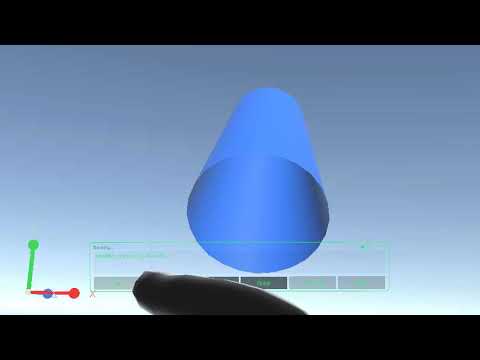
Air 2 3D Lab puts grabable 3D models in the room around you — viewed through XREAL Air glasses with hand tracking. Pinch to move, two hands to scale, and walk around your layout with 6DOF.
NEW: VOICE ASSISTANT (OPTIONAL)
Talk or type to build and edit the room. Enable Voice on the Environment menu, enter your own cloud API key, pick a model, then Send. Speech-to-text runs on the phone; nothing is uploaded until you send the edited prompt.
The assistant can:
• Spawn, move, rotate, scale, color, lock, group, and delete shapes
• Load STL / glTF models and photo plates from Home
• Sketch, extrude, cut holes, and mate parts (Assemble)
• Look at a photo in the room and draw on it
• Save an edited image back to Home
• Enable physics so you can throw or fist-poke objects
Bring your own key for Gemini, Claude, OpenAI, Kimi, or xAI. Core 3D editing works fully offline if Voice stays off. Prompts go only to the provider you chose — we do not run that cloud.
BUILT FOR XREAL GLASSES
Launch from ControlGlasses / Nebula with Air 2 Ultra (or compatible XREAL glasses) connected. Place shapes in world space and explore them from any angle.
HAND TRACKING CONTROLS
• Pinch to grab and move; two-handed pinch to scale
• Closed-fist punch pokes objects (physics / interactive scenes) without clicking UI
• Hold a shape for Move, Precise, Edit, Texture, scale, delete, and Lock
• Texture: colors, Home images, Wireframe, and X-ray
• Lock freezes a shape until you unlock it
• Double-pinch shows or hides the Menu and Shot buttons
• Phone App button: short-press Hands ↔ Laser; long-press hides chrome
PRISM MENU
Poke Menu to open a six-sided menu around you:
• Shapes — cubes, spheres, cylinders, capsules, text labels, video screen, music player
• STLs — Home folder (folders + .stl / .glb / .gltf / .jpg / .png / .webp)
• Environment — save/load layouts, export/import .hse, Voice, Guide, Exit App
• Camera — optional camera background / feed sizing
• Axes — nudge the world XYZ gizmo
• Player — play videos you shared into the app
YOUR OWN 3D MODELS AND PHOTOS
Copy .stl / .glb / .gltf files and .jpg / .png / .webp photos into a Home folder on the phone, grant access once with Set home…, then browse and add models or photo plates in VR. Organize by folders. Adjust the phone-RAM / size limit for large meshes.
SKETCH, ASSEMBLE & CONSTRAINTS
• Sketch: poke Sketch, pick a plane, draw, extrude, and cut holes
• Assemble: pick a surface / edge / point on two shapes, then Coincident, Parallel, Perpendicular, Concentric, Tangent, Distance, or Angle
• Optional surface snap still highlights a nearby shape for Align / Tangent / Concentric
• Hollow cubes can be open containers so objects fall inside
• Chosen mates stay linked when you move or resize
VIDEO & MUSIC
• Add a Video screen, share a local video from Gallery into Air 2 3D Lab videos (fast list + Delete; does not boot the glasses), then play it from the Player menu
• Place a Music player remote to control your phone’s active music app (Play, Pause, Skip, Volume)
SHARE LAYOUTS
Export an environment as a .hse file (includes STL / glTF / images). Friends can open or share that file into Air 2 3D Lab to import the same layout.
CAPTURE & NOTES
• Shot saves a clear mono photo of your view to Pictures/HandShapes
• Text labels with presets or type on the phone keyboard
• XYZ axes for orientation
• In-app Guide on the Environment menu
• Exit App from the Environment menu
REQUIREMENTS
• XREAL Air 2 Ultra (or compatible) + supported Android phone
• ControlGlasses / Nebula to launch
• Camera permission if you enable the camera background feed
• Microphone permission only if you use Voice Mic (on-device speech-to-text)
• Hand tracking enabled in XREAL settings
• Voice: your own LLM API key (optional). We do not sell keys or require an account.
Note: YouTube / web video links are not supported — share downloaded video files. This app is designed for use with XREAL glasses, not as a standalone phone AR experience.
NEW: VOICE ASSISTANT (OPTIONAL)
Talk or type to build and edit the room. Enable Voice on the Environment menu, enter your own cloud API key, pick a model, then Send. Speech-to-text runs on the phone; nothing is uploaded until you send the edited prompt.
The assistant can:
• Spawn, move, rotate, scale, color, lock, group, and delete shapes
• Load STL / glTF models and photo plates from Home
• Sketch, extrude, cut holes, and mate parts (Assemble)
• Look at a photo in the room and draw on it
• Save an edited image back to Home
• Enable physics so you can throw or fist-poke objects
Bring your own key for Gemini, Claude, OpenAI, Kimi, or xAI. Core 3D editing works fully offline if Voice stays off. Prompts go only to the provider you chose — we do not run that cloud.
BUILT FOR XREAL GLASSES
Launch from ControlGlasses / Nebula with Air 2 Ultra (or compatible XREAL glasses) connected. Place shapes in world space and explore them from any angle.
HAND TRACKING CONTROLS
• Pinch to grab and move; two-handed pinch to scale
• Closed-fist punch pokes objects (physics / interactive scenes) without clicking UI
• Hold a shape for Move, Precise, Edit, Texture, scale, delete, and Lock
• Texture: colors, Home images, Wireframe, and X-ray
• Lock freezes a shape until you unlock it
• Double-pinch shows or hides the Menu and Shot buttons
• Phone App button: short-press Hands ↔ Laser; long-press hides chrome
PRISM MENU
Poke Menu to open a six-sided menu around you:
• Shapes — cubes, spheres, cylinders, capsules, text labels, video screen, music player
• STLs — Home folder (folders + .stl / .glb / .gltf / .jpg / .png / .webp)
• Environment — save/load layouts, export/import .hse, Voice, Guide, Exit App
• Camera — optional camera background / feed sizing
• Axes — nudge the world XYZ gizmo
• Player — play videos you shared into the app
YOUR OWN 3D MODELS AND PHOTOS
Copy .stl / .glb / .gltf files and .jpg / .png / .webp photos into a Home folder on the phone, grant access once with Set home…, then browse and add models or photo plates in VR. Organize by folders. Adjust the phone-RAM / size limit for large meshes.
SKETCH, ASSEMBLE & CONSTRAINTS
• Sketch: poke Sketch, pick a plane, draw, extrude, and cut holes
• Assemble: pick a surface / edge / point on two shapes, then Coincident, Parallel, Perpendicular, Concentric, Tangent, Distance, or Angle
• Optional surface snap still highlights a nearby shape for Align / Tangent / Concentric
• Hollow cubes can be open containers so objects fall inside
• Chosen mates stay linked when you move or resize
VIDEO & MUSIC
• Add a Video screen, share a local video from Gallery into Air 2 3D Lab videos (fast list + Delete; does not boot the glasses), then play it from the Player menu
• Place a Music player remote to control your phone’s active music app (Play, Pause, Skip, Volume)
SHARE LAYOUTS
Export an environment as a .hse file (includes STL / glTF / images). Friends can open or share that file into Air 2 3D Lab to import the same layout.
CAPTURE & NOTES
• Shot saves a clear mono photo of your view to Pictures/HandShapes
• Text labels with presets or type on the phone keyboard
• XYZ axes for orientation
• In-app Guide on the Environment menu
• Exit App from the Environment menu
REQUIREMENTS
• XREAL Air 2 Ultra (or compatible) + supported Android phone
• ControlGlasses / Nebula to launch
• Camera permission if you enable the camera background feed
• Microphone permission only if you use Voice Mic (on-device speech-to-text)
• Hand tracking enabled in XREAL settings
• Voice: your own LLM API key (optional). We do not sell keys or require an account.
Note: YouTube / web video links are not supported — share downloaded video files. This app is designed for use with XREAL glasses, not as a standalone phone AR experience.
Voice AI + hand-tracked 3D shapes, STLs & photos on XREAL Air 2 glasses
Updated on
Safety starts with understanding how developers collect and share your data. Data privacy and security practices may vary based on your use, region, and age. The developer provided this information and may update it over time.
- No data shared with third partiesLearn more about how developers declare sharing
- No data collectedLearn more about how developers declare collection
- Data is encrypted in transit
- Data can’t be deleted


What’s new
Voice
- Play glTF / GLB animations; scene graph includes animations[]
- Write and edit text on a mesh
- Conversation log on Home (prompts, tools, errors, model name)
- Thinking view (poke the chat status; Share)
- Prompt caching
Shapes / lab
- Temporary effects: cloud, smoke, beams, including on collide
- GLB import keeps colors and textures (no more default grey)
- PhysX gravity hinge and kinematic hinge fixes
- STLs menu: browse a LAN STL server and download meshes
- Play glTF / GLB animations; scene graph includes animations[]
- Write and edit text on a mesh
- Conversation log on Home (prompts, tools, errors, model name)
- Thinking view (poke the chat status; Share)
- Prompt caching
Shapes / lab
- Temporary effects: cloud, smoke, beams, including on collide
- GLB import keeps colors and textures (no more default grey)
- PhysX gravity hinge and kinematic hinge fixes
- STLs menu: browse a LAN STL server and download meshes
Everyone
Learn moreApp support
phone
Phone number
+40733106925
About the developer
LUCAN ARCADIE CEZAR
cezar.lucan@outlook.com
Romania


