
spacedesk - USB Display for PC

4.5star
4.1萬則評論
1,000萬+
次下載

適合所有人
info


關於這個應用程式
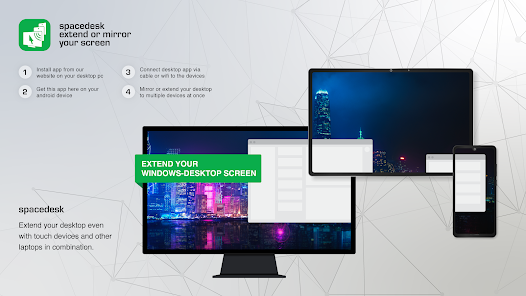
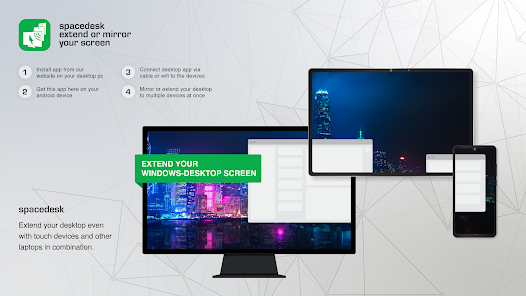
Windows 電腦桌面擴充程序,支援 WiFi、USB 或 LAN 的鏡像和遠端控制工具。支援的應用包括:
- 螢幕投射(投射到電視、平板電腦或智慧型手機)
- 桌面遠端檢視器(透過 USB 和區域網路)
- 繪圖板(使用數位筆進行繪圖和繪畫)
- 無線顯示器(類似 Miracast、RDP、AirPlay 和 Sidecar)
- USB 顯示器(類似 DisplayLink)
- 遠端存取(透過 USB 連接、WiFi 和 LAN)
- 遠端控制(無線和有線)
- 螢幕串流(含音訊)
- 螢幕鏡像(無線和有線)
- 螢幕克隆
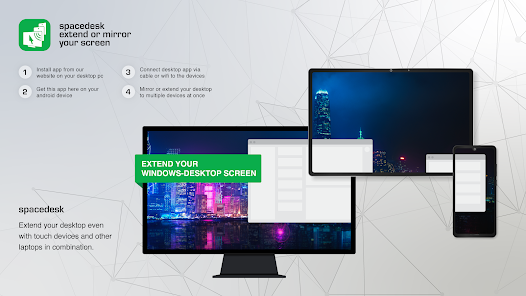
- 擴充螢幕
- Windows 桌面工作區擴充
- Windows 桌面複製(克隆)
- Windows 桌面串流
- 個人電腦桌面展示器
- 桌上型電腦虛擬顯示器
- 附加顯示器
- 移動第二顯示器
- 電視、手機或平板電腦螢幕並排顯示
- Miracast、AirPlay 和 Sidecar 的替代方案
- 便攜式多顯示器筆記型電腦螢幕,方便旅行
- 透過行動裝置存取主電腦
- 軟體 KVM 切換器(鍵盤、影片、滑鼠)
- 軟體顯示集線器
- 軟體顯示切換器
- 投影機螢幕檢視器
- 輸入控制台
- 輸入終端機
- 平板電腦輸入設備
- Windows 圖形平板電腦應用程式
- Windows 平板電腦作為素描本,用於繪製藝術作品
-創意視訊牆應用程式
- 可任意角度旋轉的視訊牆
使用手冊、文件和詳細設定:
https://manual.spacedesk.net
快速指南:
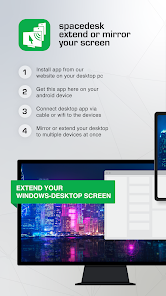
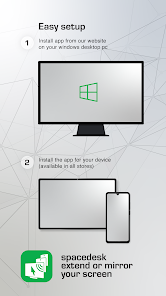
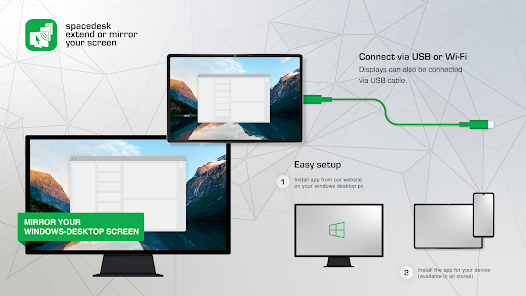
1. 在 Windows 主電腦上安裝 spacedesk 驅動程式。
下載網址:https://www.spacedesk.net
2. 在 Android 裝置上安裝 spacedesk Viewer 應用程式。
3. 開啟 spacedesk Viewer 應用程式並連線至 Windows 主電腦。
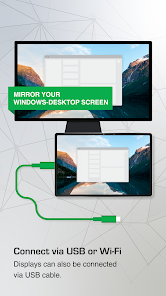
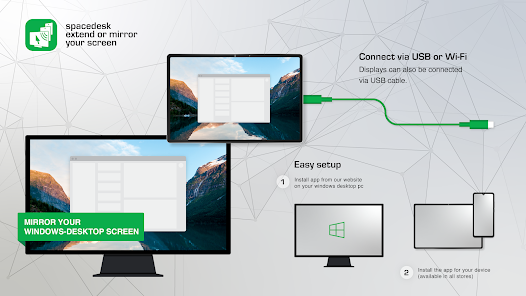
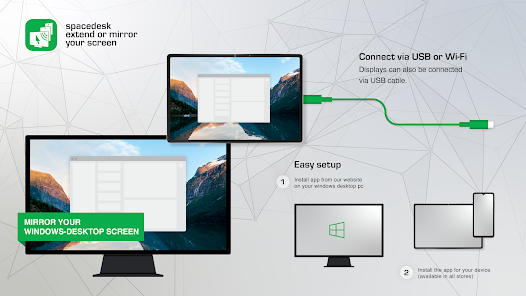
連接方式:USB 或 LAN(區域網路)。
LAN:驅動程式和 Viewer 必須在同一網路上。
- 通過移動熱點
注意:無需網路連線!
執行 spacedesk 驅動程式的 Windows 主電腦…
……支援 Windows 11、Windows 10 或 Windows 8.1。不支援 Apple Mac。
支援雙顯示器和多顯示器配置。支持。
需要安裝 Spacedesk 驅動程式。下載網址:https://www.spacedesk.net
輔助設備(Android 網路顯示客戶端)...
...是指運行 Spacedesk Android 應用的 Android 平板電腦、手機或其他裝置。
無線和有線連接...
...透過 USB、LAN(區域網,例如乙太網路)和/或 WLAN(無線區域網路)將 Windows 主裝置連接到輔助裝置。
區域網路連線可以是有線連線或 WiFi 連線。需要 TCP/IP 網路協定。
更多資訊請見:
https://www.spacedesk.net
使用手冊:https://manual.spacedesk.net/
支援論壇:https://forum.spacedesk.ph
Facebook:https://www.facebook.com/pages/spacedesk/330909083726073
YouTube: https://www.youtube.com/watch?v=YkWZSwBD-XY
— 極速體驗 —
為了獲得無與倫比的性能和顯示質量,實現零延遲,請使用 USB 電纜或區域網路連接。盡量避免使用 WiFi 和路由器。例如,將 Windows PC 或 Android 裝置配置為 WiFi 接入點(熱點),並在連接 Spacedesk 之前直接連接。請參閱使用手冊中的「效能調優」章節:https://manual.spacedesk.net
— 遠端控制輸入輸出週邊配件 —
- 觸控螢幕(多點觸控和單點觸控)
- 觸控板
- 滑鼠指標控制
- 鍵盤
- 壓感觸控筆
- 揚聲器
— 設定與選項 —
- 橫屏模式視圖
- 垂直螢幕視圖
— 系統支援 —
支援 Android 5.0 以上版本以及 Windows 11 和 Windows 10 作業系統的 PC。不支援蘋果 Mac 電腦。
- 螢幕投射(投射到電視、平板電腦或智慧型手機)
- 桌面遠端檢視器(透過 USB 和區域網路)
- 繪圖板(使用數位筆進行繪圖和繪畫)
- 無線顯示器(類似 Miracast、RDP、AirPlay 和 Sidecar)
- USB 顯示器(類似 DisplayLink)
- 遠端存取(透過 USB 連接、WiFi 和 LAN)
- 遠端控制(無線和有線)
- 螢幕串流(含音訊)
- 螢幕鏡像(無線和有線)
- 螢幕克隆
- 擴充螢幕
- Windows 桌面工作區擴充
- Windows 桌面複製(克隆)
- Windows 桌面串流
- 個人電腦桌面展示器
- 桌上型電腦虛擬顯示器
- 附加顯示器
- 移動第二顯示器
- 電視、手機或平板電腦螢幕並排顯示
- Miracast、AirPlay 和 Sidecar 的替代方案
- 便攜式多顯示器筆記型電腦螢幕,方便旅行
- 透過行動裝置存取主電腦
- 軟體 KVM 切換器(鍵盤、影片、滑鼠)
- 軟體顯示集線器
- 軟體顯示切換器
- 投影機螢幕檢視器
- 輸入控制台
- 輸入終端機
- 平板電腦輸入設備
- Windows 圖形平板電腦應用程式
- Windows 平板電腦作為素描本,用於繪製藝術作品
-創意視訊牆應用程式
- 可任意角度旋轉的視訊牆
使用手冊、文件和詳細設定:
https://manual.spacedesk.net
快速指南:
1. 在 Windows 主電腦上安裝 spacedesk 驅動程式。
下載網址:https://www.spacedesk.net
2. 在 Android 裝置上安裝 spacedesk Viewer 應用程式。
3. 開啟 spacedesk Viewer 應用程式並連線至 Windows 主電腦。
連接方式:USB 或 LAN(區域網路)。
LAN:驅動程式和 Viewer 必須在同一網路上。
- 通過移動熱點
注意:無需網路連線!
執行 spacedesk 驅動程式的 Windows 主電腦…
……支援 Windows 11、Windows 10 或 Windows 8.1。不支援 Apple Mac。
支援雙顯示器和多顯示器配置。支持。
需要安裝 Spacedesk 驅動程式。下載網址:https://www.spacedesk.net
輔助設備(Android 網路顯示客戶端)...
...是指運行 Spacedesk Android 應用的 Android 平板電腦、手機或其他裝置。
無線和有線連接...
...透過 USB、LAN(區域網,例如乙太網路)和/或 WLAN(無線區域網路)將 Windows 主裝置連接到輔助裝置。
區域網路連線可以是有線連線或 WiFi 連線。需要 TCP/IP 網路協定。
更多資訊請見:
https://www.spacedesk.net
使用手冊:https://manual.spacedesk.net/
支援論壇:https://forum.spacedesk.ph
Facebook:https://www.facebook.com/pages/spacedesk/330909083726073
YouTube: https://www.youtube.com/watch?v=YkWZSwBD-XY
— 極速體驗 —
為了獲得無與倫比的性能和顯示質量,實現零延遲,請使用 USB 電纜或區域網路連接。盡量避免使用 WiFi 和路由器。例如,將 Windows PC 或 Android 裝置配置為 WiFi 接入點(熱點),並在連接 Spacedesk 之前直接連接。請參閱使用手冊中的「效能調優」章節:https://manual.spacedesk.net
— 遠端控制輸入輸出週邊配件 —
- 觸控螢幕(多點觸控和單點觸控)
- 觸控板
- 滑鼠指標控制
- 鍵盤
- 壓感觸控筆
- 揚聲器
— 設定與選項 —
- 橫屏模式視圖
- 垂直螢幕視圖
— 系統支援 —
支援 Android 5.0 以上版本以及 Windows 11 和 Windows 10 作業系統的 PC。不支援蘋果 Mac 電腦。
更新日期


評分和評論
4.2
2.29萬則評論

閒人日誌(月亮神)
- 檢舉不當評論
2025年9月9日
第一次用花了很多時間去連接,但不論usb還是 wifi也連不上!己在電腦下載你們的軟件,但還是說找不到裝置。給了ip也連不到! 給你兩粒星係因為不像其他同類軟件這樣一開始狂彈出廣告。
1 位使用者認為這則評論有幫助
datronicsoft Technology GmbH
2025年9月9日
Did you select "USB Cable Android" in on Windows PC? For WiFi, are both PC and Android device on the same Local Area Network? VPN active or a third-party firewall software? Incompatible product installed? Read instruction manual on https://www.spacedesk.net/documentation If this does not help, then support is available on https://help.spacedesk.net

Google 使用者
- 檢舉不當評論
- 顯示評論記錄
2019年6月10日
很感謝開發者的回應,但我說的快速知道誰連線是指的程式可以主動跳出通知(例如C#的notifyIcon ShowBalloonTip),另外Server端程式應該可以為自己的Server加上密碼,當Client端連線時,必須輸入Server這邊的密碼,這樣就可以避免區網內任何有同樣的使用者任意登入。
19 位使用者認為這則評論有幫助
datronicsoft Technology GmbH
2019年6月10日
Please check the instruction manual chapter "Verify Network Connection and additional Display Monitor"
https://spacedesk.net/user-manual#verify-connection
This shows how to quickly see who is connected.
EDIT: We had system tray ballon tip before - it annoyed too many people. We will implement password authentication in the mid term future.

唐萱 Shirley Tang
- 檢舉不當評論
- 顯示評論記錄
2021年12月10日
我用NB當Server, 平板當擴充螢幕, 透過同一個WIFI來連線, 平常頗好用, 但連線偶爾會中斷 (Lost Connection), 非得要重新啟動NB才能讓連線畫面恢復正常顯示, 希望這點能改善~加油~~ :)
7 位使用者認為這則評論有幫助
新功能
Several bugfixes
應用程式支援
開發人員資訊
datronicsoft Technology GmbH
info@spacedesk.net
Pröllstr. 22
86157 Augsburg
Germany
+49 821 4400920


